Navigating the IRIS Resource Locator
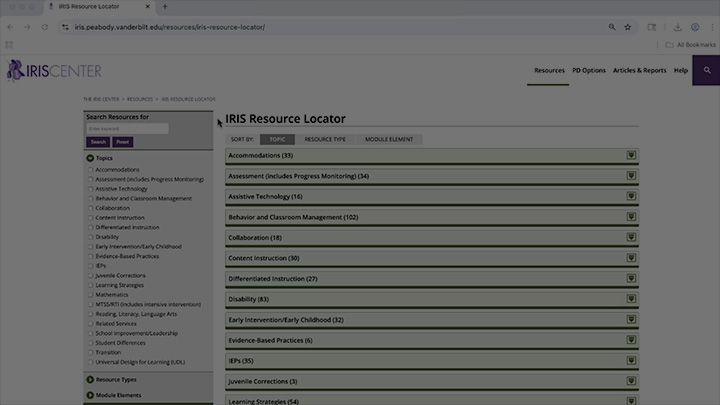
This video demonstrates key features of the IRIS Resource Locator. The IRL is the primary search engine for these popular resources: modules, case studies, fundamental skill sheets, activities, information briefs, interviews, and video vignettes (time: 2:15).
Transcript: Navigating the IRIS Resource Locator (IRL)
Hello and welcome to the IRIS Center! The purpose of this video is to acquaint you with the IRIS Resource Locator, or IRL, which we’re looking at now. But first I’m going to show you two different ways to get to the IRL from our home page.
One way to get to the IRL is to click on the Resources tab in the fixed navigation header, then click on the first option in the drop-down menu. A second way to get to the IRL from the home page is to scroll down to the IRIS Resource Locator box and click on the Get Started link.
Once you’re on the IRL page, you’ll see a list of topic areas on the left and the full list of topics in green subheadings on the right. Click on any checkbox or title on the left to narrow your search options. For example, when I click on “Behavior and Classroom Management,” only that topic remains on the right. All of the IRIS resources related to Behavior and Classroom Management appear below the green subheading, including modules, case studies, Fundamental Skill Sheets, activities, information briefs, interviews, and video vignettes.
Another option is to click directly on the topic of interest using the list of green subheadings on the right, which will open a drop-down menu of all the related resources below. I can click on any of these resource types to get more information. For example, if I click on “Modules,” a list of module titles appears, with each one accompanied by a brief description and the estimated time it takes to work through the module.
Now, I’m going to close the Topics option in the left navigation bar and click on the Resource Types option directly below it, which will provide a drop-down menu to sort resources by modules, case studies, and so on. Note that not all topics have every resource type.
As we return to the top of the IRL, you can see that it’s also possible to sort resources using the Topic and Resource Type filters above the green subheadings.
Well, that’s a brief tour of our IRIS Resource Locator. Thank you for watching this video and, as always, we encourage you to explore the site on your own.
